
Expand and collapse
Use the expand and collapse operations to analyze the data on different levels of detail.
Example
Expand the Category hierarchy to display the members of the next (Business Type) hierarchy.
In a classic form:
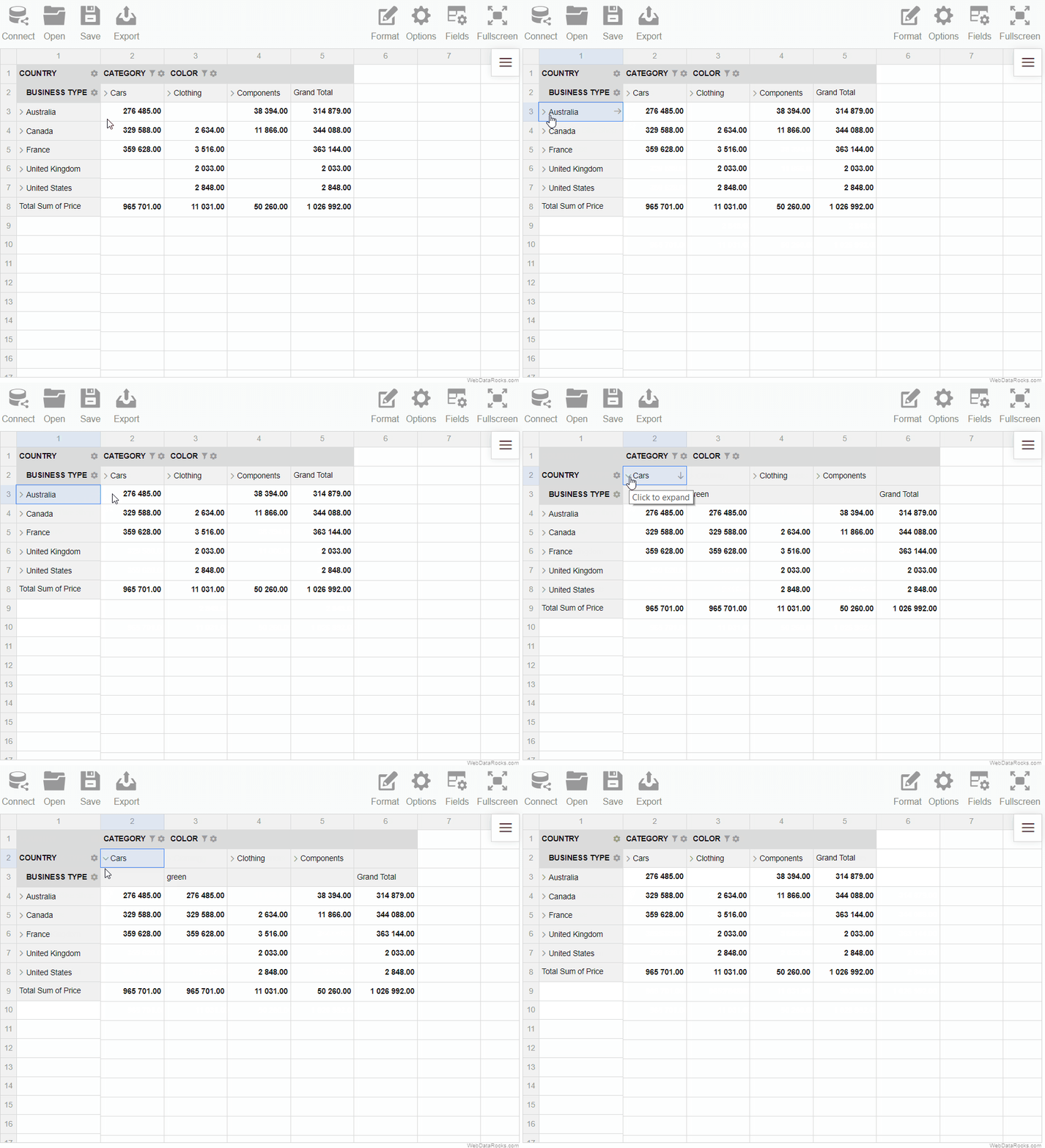
In a compact form:
Use the expand and collapse operations to analyze the data on different levels of detail.
Example
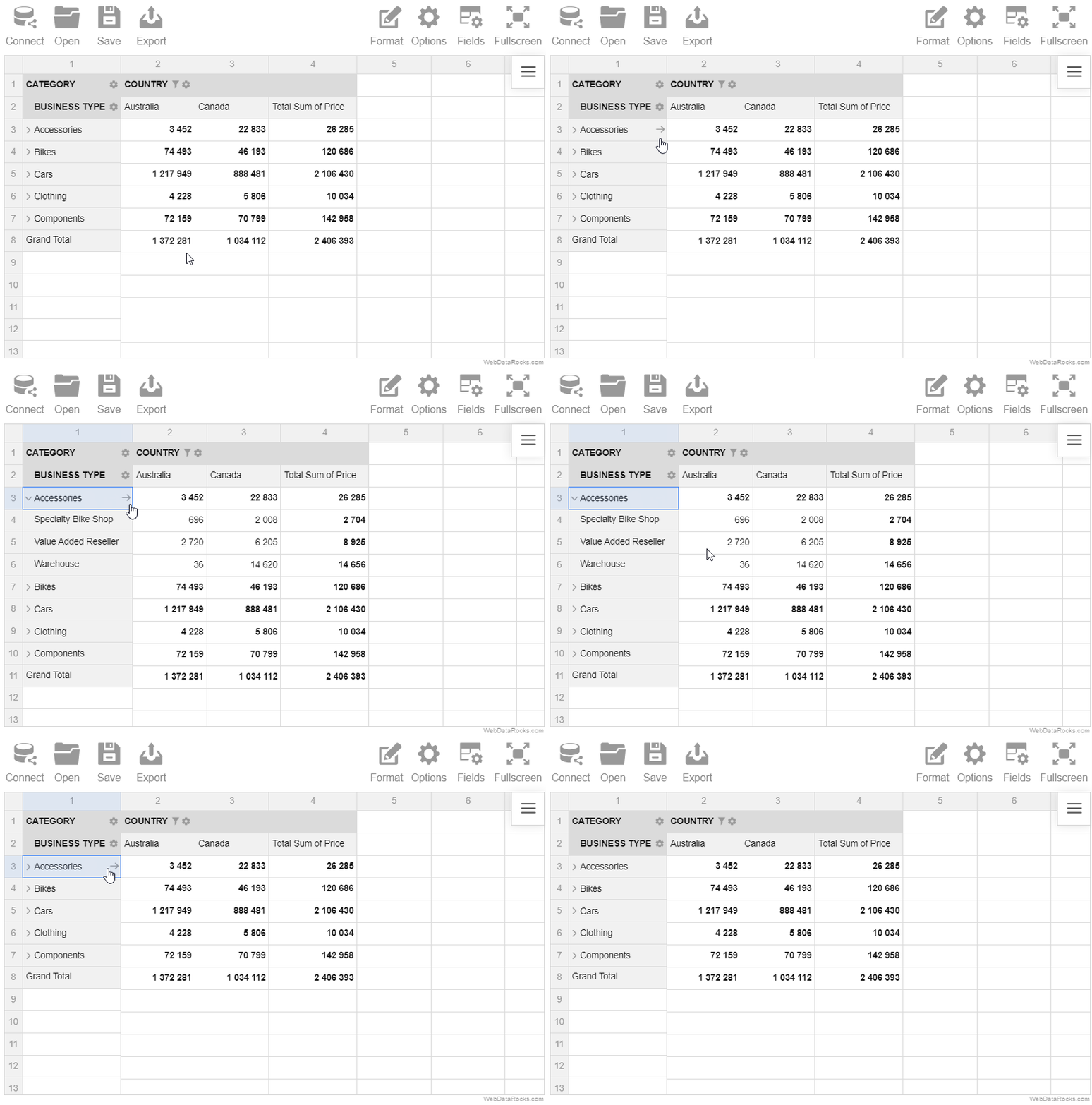
Expand the Category hierarchy to display the members of the next (Business Type) hierarchy.
In a classic form:
In a compact form:
We hope WebDataRocks has served as a solid foundation for your web reporting. However, as data grows, so do technical demands. If your project has reached a point where it requires uncompromising speed and deeper customization, we recommend upgrading to Flexmonster Pivot Table & Charts.
Developed by the same team, Flexmonster includes everything you love about WebDataRocks plus advanced features designed for high-stakes applications. Since you’re already part of our ecosystem, you can claim a special offer and enjoy a seamless migration with minimal code changes.
Watch this video for a detailed overview of Flexmonster Pivot and then try out the live demo:
Why Move to Flexmonster?
Load large datasets
WebDataRocks works with JSON and CSV datasets no larger than 1 MB, which should satisfy the majority of use cases.
Flexmonster doesn’t set limits on the dataset’s size, so the maximum size depends only on the browser’s capabilities. Moreover, Flexmonster can connect to server-side data storage and load only the necessary data subsets into the browser, allowing you to work with much larger datasets.
More data source options
In addition to having no strict limit on the data size, Flexmonster offers a wider selection of data sources.
The following data sources are supported out of the box:
- JSON
- CSV
- Microsoft Analyses Services
- SQL databases
- Elasticsearch
- MongoDB
You can also connect Flexmonster Pivot to any data source using the custom data source API — Flexmonster’s communication protocol that helps you build a custom data source using your server.
See the full list of the data sources supported by Flexmonster.
Built-in pivot charts
Flexmonster offers one more exclusive feature — built-in pivot charts. This allows you to visualize data using the charts out of the box without integrating with third-party charting libraries.
Check out the video that shows how to work with Flexmonster Pivot Charts:
Advanced customer support
Another important aspect of Flexmonster is Rockstar Support — a team of technical specialists who are always ready to answer your questions or help you resolve issues. You can also check out the collection of resolved support tickets to find a solution for your case.
Other benefits
In addition to everything listed, Flexmonster provides other benefits:
How to Get Started with Flexmonster
1. Start Your Free Trial
Explore the full range of premium features with a 30-day free trial and decide whether it fits your project.
2. Follow the Migration Guide
Transitioning is simple. Our Migration Guide provides a step-by-step walkthrough on how to swap your scripts and unlock new capabilities in minutes.
The main idea of the calculated values lies in giving a more complete picture of your data by measuring your data in a custom way.
To create a calculated value, define an expression on which the values are calculated and apply it to your data. It serves as a new aggregation function that you can change or delete at any moment.
Moreover, multiple calculated values can be created within one report.
To add a calculated value
- Go to the Fields tab () on the Toolbar.
- Click the Add calculated value button.
- Type in the name of a formula in the input field.
- Choose the fields to include in the formula, the aggregation functions to apply to these fields, and add the necessary operators.
- Apply the changes.
NOTE: the Count and Unique Count functions can be applied only to the string fields.
Example
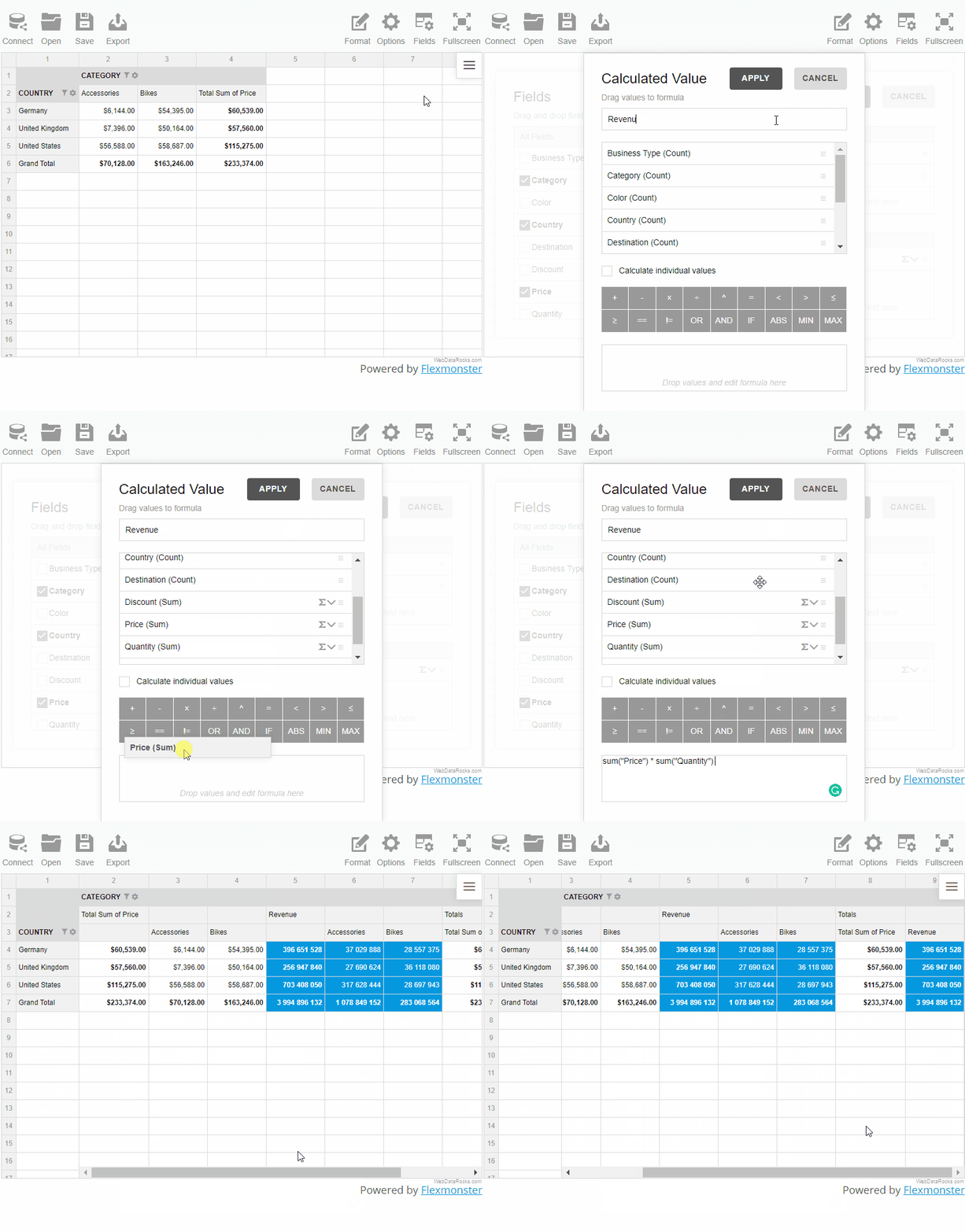
Let’s define a new Revenue measure. It is composed of Price and Quantity fields (Price * Quantity).
- Type in a name of a new calculated value.
- Drag the fields to the Formula area and add a multiplication operator to compose a product of two values.
- Apply the changes. Now the new calculated value is placed at the bottom of the list. Drop it to the Values area to add it to the report.
All calculated values are saved in the measures of the report’s slice.
To edit a calculated value
- Go to the Fields tab () on the Toolbar.
- Find the calculated value in the All fields box.
- Click the Sigma editing button (
 ) next to the value’s name.
 - Edit the calculated value.
- Apply the changes.
To remove a calculated value
- Go to the Fields tab () on the Toolbar.
- Find the calculated value in the All fields box.
- Click the Sigma editing button () next to the value’s name.
- Click the Remove button (✕).
- Confirm the action.
Individual values
Note that there is the Calculate individual values checkbox. If it is checked, the formula is calculated based on the raw values. Otherwise, it is calculated using the aggregated values.
Find out the difference between the calculated and calculated individual values in the demo.
The main idea of the calculated values lies in giving a more complete picture of your data by measuring your data in a custom way.
To create a calculated value, define an expression on which the values are calculated and apply it to your data. It serves as a new aggregation function that you can change or delete at any moment.
Moreover, multiple calculated values can be created within one report.
To add a calculated value
- Go to the Fields tab () on the Toolbar.
- Click the Add calculated value button.
- Type in the name of a formula in the input field.
- Choose the fields to include in the formula, the aggregation functions to apply to these fields, and add the necessary operators.
- Apply the changes.
NOTE: the Count and Unique Count functions can be applied only to the string fields.
Example
Let’s define a new Revenue measure. It is composed of Price and Quantity fields (Price * Quantity).
- Type in a name of a new calculated value.
- Drag the fields to the Formula area and add a multiplication operator to compose a product of two values.
- Apply the changes. Now the new calculated value is placed at the bottom of the list. Drop it to the Values area to add it to the report.
All calculated values are saved in the measures of the report’s slice.
To edit a calculated value
- Go to the Fields tab () on the Toolbar.
- Find the calculated value in the All fields box.
- Click the Sigma editing button () next to the value’s name.
- Edit the calculated value.
- Apply the changes.
To remove a calculated value
- Go to the Fields tab () on the Toolbar.
- Find the calculated value in the All fields box.
- Click the Sigma editing button () next to the value’s name.
- Click the Remove button (✕).
- Confirm the action.
Individual values
Note that there is the Calculate individual values checkbox. If it is checked, the formula is calculated based on the raw values. Otherwise, it is calculated using the aggregated values.
Find out the difference between the calculated and calculated individual values in the demo.
We hope WebDataRocks has served as a solid foundation for your web reporting. However, as data grows, so do technical demands. If your project has reached a point where it requires uncompromising speed and deeper customization, we recommend upgrading to Flexmonster Pivot Table & Charts.
Developed by the same team, Flexmonster includes everything you love about WebDataRocks plus advanced features designed for high-stakes applications. Since you’re already part of our ecosystem, you can claim a special offer and enjoy a seamless migration with minimal code changes.
Watch this video for a detailed overview of Flexmonster Pivot and then try out the live demo:
Why Move to Flexmonster?
Load large datasets
WebDataRocks works with JSON and CSV datasets no larger than 1 MB, which should satisfy the majority of use cases.
Flexmonster doesn’t set limits on the dataset’s size, so the maximum size depends only on the browser’s capabilities. Moreover, Flexmonster can connect to server-side data storage and load only the necessary data subsets into the browser, allowing you to work with much larger datasets.
More data source options
In addition to having no strict limit on the data size, Flexmonster offers a wider selection of data sources.
The following data sources are supported out of the box:
- JSON
- CSV
- Microsoft Analyses Services
- SQL databases
- Elasticsearch
- MongoDB
You can also connect Flexmonster Pivot to any data source using the custom data source API — Flexmonster’s communication protocol that helps you build a custom data source using your server.
See the full list of the data sources supported by Flexmonster.
Built-in pivot charts
Flexmonster offers one more exclusive feature — built-in pivot charts. This allows you to visualize data using the charts out of the box without integrating with third-party charting libraries.
Check out the video that shows how to work with Flexmonster Pivot Charts:
Advanced customer support
Another important aspect of Flexmonster is Rockstar Support — a team of technical specialists who are always ready to answer your questions or help you resolve issues. You can also check out the collection of resolved support tickets to find a solution for your case.
Other benefits
In addition to everything listed, Flexmonster provides other benefits:
How to Get Started with Flexmonster
1. Start Your Free Trial
Explore the full range of premium features with a 30-day free trial and decide whether it fits your project.
2. Follow the Migration Guide
Transitioning is simple. Our Migration Guide provides a step-by-step walkthrough on how to swap your scripts and unlock new capabilities in minutes.
The main idea of the calculated values lies in giving a more complete picture of your data by measuring your data in a custom way.
To create a calculated value, define an expression on which the values are calculated and apply it to your data. It serves as a new aggregation function that you can change or delete at any moment.
Moreover, multiple calculated values can be created within one report.
To add a calculated value
- Go to the Fields tab () on the Toolbar.
- Click the Add calculated value button.
- Type in the name of a formula in the input field.
- Choose the fields to include in the formula, the aggregation functions to apply to these fields, and add the necessary operators.
- Apply the changes.
NOTE: the Count and Unique Count functions can be applied only to the string fields.
Example
Let’s define a new Revenue measure. It is composed of Price and Quantity fields (Price * Quantity).
- Type in a name of a new calculated value.
- Drag the fields to the Formula area and add a multiplication operator to compose a product of two values.
- Apply the changes. Now the new calculated value is placed at the bottom of the list. Drop it to the Values area to add it to the report.
All calculated values are saved in the measures of the report’s slice.
To edit a calculated value
- Go to the Fields tab () on the Toolbar.
- Find the calculated value in the All fields box.
- Click the Sigma editing button () next to the value’s name.
- Edit the calculated value.
- Apply the changes.
To remove a calculated value
- Go to the Fields tab () on the Toolbar.
- Find the calculated value in the All fields box.
- Click the Sigma editing button () next to the value’s name.
- Click the Remove button (✕).
- Confirm the action.
Individual values
Note that there is the Calculate individual values checkbox. If it is checked, the formula is calculated based on the raw values. Otherwise, it is calculated using the aggregated values.
Find out the difference between the calculated and calculated individual values in the demo.
We hope WebDataRocks has served as a solid foundation for your web reporting. However, as data grows, so do technical demands. If your project has reached a point where it requires uncompromising speed and deeper customization, we recommend upgrading to Flexmonster Pivot Table & Charts.
Developed by the same team, Flexmonster includes everything you love about WebDataRocks plus advanced features designed for high-stakes applications. Since you’re already part of our ecosystem, you can claim a special offer and enjoy a seamless migration with minimal code changes.
Watch this video for a detailed overview of Flexmonster Pivot and then try out the live demo:
Why Move to Flexmonster?
Load large datasets
WebDataRocks works with JSON and CSV datasets no larger than 1 MB, which should satisfy the majority of use cases.
Flexmonster doesn’t set limits on the dataset’s size, so the maximum size depends only on the browser’s capabilities. Moreover, Flexmonster can connect to server-side data storage and load only the necessary data subsets into the browser, allowing you to work with much larger datasets.
More data source options
In addition to having no strict limit on the data size, Flexmonster offers a wider selection of data sources.
The following data sources are supported out of the box:
- JSON
- CSV
- Microsoft Analyses Services
- SQL databases
- Elasticsearch
- MongoDB
You can also connect Flexmonster Pivot to any data source using the custom data source API — Flexmonster’s communication protocol that helps you build a custom data source using your server.
See the full list of the data sources supported by Flexmonster.
Built-in pivot charts
Flexmonster offers one more exclusive feature — built-in pivot charts. This allows you to visualize data using the charts out of the box without integrating with third-party charting libraries.
Check out the video that shows how to work with Flexmonster Pivot Charts:
Advanced customer support
Another important aspect of Flexmonster is Rockstar Support — a team of technical specialists who are always ready to answer your questions or help you resolve issues. You can also check out the collection of resolved support tickets to find a solution for your case.
Other benefits
In addition to everything listed, Flexmonster provides other benefits:
How to Get Started with Flexmonster
1. Start Your Free Trial
Explore the full range of premium features with a 30-day free trial and decide whether it fits your project.
2. Follow the Migration Guide
Transitioning is simple. Our Migration Guide provides a step-by-step walkthrough on how to swap your scripts and unlock new capabilities in minutes.
In this guide, you can learn how to format your JSON data so WebDataRocks can process it.
JSON formats
WebDataRocks supports two JSON formats:
1) Array of objects. Each object is an unordered collection of key-value pairs, where the key is a field name and the value is a field member. Example:
[
  {
    "Product": "Apple",
    "Price": 2.50
  },
  {
    "Product": "Cherry",
    "Price": 5.25
  }
]
2) Array of arrays. The first subarray contains field names, while the other subarrays contain the respective field members. The field’s name and members must have the same position in the subarrays. Example:
[
  ["Product", "Price"],
  ["Apple", 2.50],
  ["Cherry", 5.25]
]
Regardless of what JSON format you choose, the first element of each array can be the metadata object for JSON. This object is used to set data types and create multilevel hierarchies.
Input value formats
Number field format
Number values can contain digits, -, and + characters. Point . must be used as a decimal separator. Numbers in exponential notation are also supported. Examples of valid values: -20, 2.50, 1.0E+2.
String field format
String values must be enclosed in double quotation marks. Special characters, such as line breaks or double quotation marks, must be escaped using the backslash. Examples of valid values: "Apple", "\"A-Z\" section".
Date field format
Date fields must be defined in one of the following formats:
- ISO 8601. Examples:
"2018-01-10"(date),"2018-01-10T08:14:00"(date and time),"2018-01-10T06:14:00Z"(date and time in UTC). - Unix timestamps in milliseconds. Examples:
1515535200000(timestamp of the"2018-01-10"date),1515564860000(timestamp of the"2018-01-10 08:14:20"date and time).
Note. By default, Unix timestamps are interpreted in WebDataRocks as numbers. To use them as dates, explicitly set the type property in the metadata object to the needed date type. - JavaScript Date objects. Can be used only with inline JSON data. Examples:
new Date(2018, 0, 10)(creates the"2018-01-10"date),new Date("January 10, 2018 08:14:20")(creates"2018-01-10 08:14:20"date and time).
Note. In the array of arrays, JavaScript Date objects are interpreted in WebDataRocks as strings. To use them as dates, explicitly set the type property in the metadata object to the needed date type.
Time field format
Time values must be specified as a number of seconds. The component displays values in the "HH:mm:ss" format. Example: 5400 (displayed as "01:30:00").
To ensure the detection of time values, set the field type to "time" in the metadata object. Otherwise, they will be processed as numbers.
Month field format
Month values must start with a capital letter. Full names and 3-letter abbreviations of months are supported. Examples: "October", "Dec", "May".
To ensure the detection of month values, set the field type to "month" in the metadata object. Otherwise, they will be processed as strings.
Weekday field format
Weekday values must start with a capital letter. Full names and 3-letter abbreviations of the days of the week are supported. Examples: "Monday", "Sun", "Friday".
To ensure the detection of weekday values, set the field type to "weekday" in the metadata object. Otherwise, they will be processed as strings.
See also
- Setting data types
- Connecting to JSON
- Creating multilevel hierarchies in JSON
- Metadata object for JSON
In this guide, you can learn how to format your JSON data so WebDataRocks can process it.
JSON formats
WebDataRocks supports two JSON formats:
1) Array of objects. Each object is an unordered collection of key-value pairs, where the key is a field name and the value is a field member. Example:
[
  {
    "Product": "Apple",
    "Price": 2.50
  },
  {
    "Product": "Cherry",
    "Price": 5.25
  }
]
2) Array of arrays. The first subarray contains field names, while the other subarrays contain the respective field members. The field’s name and members must have the same position in the subarrays. Example:
[
  ["Product", "Price"],
  ["Apple", 2.50],
  ["Cherry", 5.25]
]
Regardless of what JSON format you choose, the first element of each array can be the metadata object for JSON. This object is used to set data types and create multilevel hierarchies.
Input value formats
Number field format
Number values can contain digits, -, and + characters. Point . must be used as a decimal separator. Numbers in exponential notation are also supported. Examples of valid values: -20, 2.50, 1.0E+2.
String field format
String values must be enclosed in double quotation marks. Special characters, such as line breaks or double quotation marks, must be escaped using the backslash. Examples of valid values: "Apple", "\"A-Z\" section".
Date field format
Date fields must be defined in one of the following formats:
- ISO 8601. Examples:
"2018-01-10"(date),"2018-01-10T08:14:00"(date and time),"2018-01-10T06:14:00Z"(date and time in UTC). - Unix timestamps in milliseconds. Examples:
1515535200000(timestamp of the"2018-01-10"date),1515564860000(timestamp of the"2018-01-10 08:14:20"date and time).
Note. By default, Unix timestamps are interpreted in WebDataRocks as numbers. To use them as dates, explicitly set the type property in the metadata object to the needed date type. - JavaScript Date objects. Can be used only with inline JSON data. Examples:
new Date(2018, 0, 10)(creates the"2018-01-10"date),new Date("January 10, 2018 08:14:20")(creates"2018-01-10 08:14:20"date and time).
Note. In the array of arrays, JavaScript Date objects are interpreted in WebDataRocks as strings. To use them as dates, explicitly set the type property in the metadata object to the needed date type.
Time field format
Time values must be specified as a number of seconds. The component displays values in the "HH:mm:ss" format. Example: 5400 (displayed as "01:30:00").
To ensure the detection of time values, set the field type to "time" in the metadata object. Otherwise, they will be processed as numbers.
Month field format
Month values must start with a capital letter. Full names and 3-letter abbreviations of months are supported. Examples: "October", "Dec", "May".
To ensure the detection of month values, set the field type to "month" in the metadata object. Otherwise, they will be processed as strings.
Weekday field format
Weekday values must start with a capital letter. Full names and 3-letter abbreviations of the days of the week are supported. Examples: "Monday", "Sun", "Friday".
To ensure the detection of weekday values, set the field type to "weekday" in the metadata object. Otherwise, they will be processed as strings.
See also
- Setting data types
- Connecting to JSON
- Creating multilevel hierarchies in JSON
- Metadata object for JSON