Showcase: How to Turn Medical Surveys into Clear Insights with WebDataRocks
In this article
We’ll show you how to create a Patient Experience Report, covering everything from structuring the data to enhancing it with visuals and clean medical design.
We are sure you’ve received many surveys on various topics and have been filling them out. But have you ever thought about how to better store this info in one place so it can be easily analyzed and navigated in the future? For sure, we’ve got a solution for you, and it’s WebDataRocks Pivot Grid!
As you know, better to learn anything by example. So, we’d love to present our new Medical Survey demo to you and walk you through the process of building it. Let’s start!
Step 1: Adding WebDataRocks Pivot Table to the Page
First step is easy as always: just add WebDataRocks to your project. It’s possible to achieve it with this code snippet:
<link href="https://cdn.webdatarocks.com/latest/theme/default/webdatarocks.min.css" rel="stylesheet" />
<script src="https://cdn.webdatarocks.com/latest/webdatarocks.toolbar.min.js"></script>
<script src="https://cdn.webdatarocks.com/latest/webdatarocks.js"></script>
Step 2: Building the Patients’ Experience Report’s Structure
Next, we create a pivot table where each row represents a patient visit, and each column reflects hospital performance metrics. In other words, just building the structure of our dashboard: include which rows, columns, and measures we’d like to display:
const pivot = new WebDataRocks({
  container: "#pivotContainer",
  width: "100%",
  report: {
    dataSource: {
      data: getData()
    },
    slice: {
      rows: [
        { uniqueName: "Name" },
        { uniqueName: "Surname" },
        { uniqueName: "Department" }
      ],
      columns: [{ uniqueName: "Measures" }],
      measures: [
        { uniqueName: "StaffFriendly" },
        { uniqueName: "WouldRecommend" },
        { uniqueName: "VisitSuccessful" },
        { uniqueName: "FacilityClean" }
      ]
    },
    options: {
      grid: {
        type: "flat",
        showGrandTotals: false
      }
    }
  }
});
Step 3: Preparing and Preprocessing the Info for Better Data Analysis
Okay, now we need to make sure our data is ready for analysis. In our case, the survey contains many Boolean values (true/false), which are not ideal for aggregation.
To solve this, we preprocess the data by converting all Boolean values into numeric ones (1 and 0). This allows WebDataRocks to correctly calculate totals and, in the future, implement a wide variety of aggregation functions.
function preprocessData(data) {
	return data.map(function (record) {
		var result = {};
		for (var key in record) {
			result[key] =
				typeof record[key] === "boolean" ? (record[key] ? 1 : 0) : record[key];
		}
		return result;
	});
}
Now, instead of using raw data, we first transform it and then pass it to the pivot table:
dataSource: {
	data: preprocessData(getData())
}
Step 4: From Raw Data to Visual Feedback with Data Visualization Techniques
The thing is, in our survey are too many true/false answers (which are now converted into 1/0 numeric values), and they are not really readable in this format. Let’s transform them into visual signals!
And at the beginning, we just list columns that contain these boolean-type answers:
const fieldsToFormat = [
  "StaffFriendly",
  "WouldRecommend",
  "VisitSuccessful",
  "FacilityClean"
];
But the question is, in which format is better to represent them then?
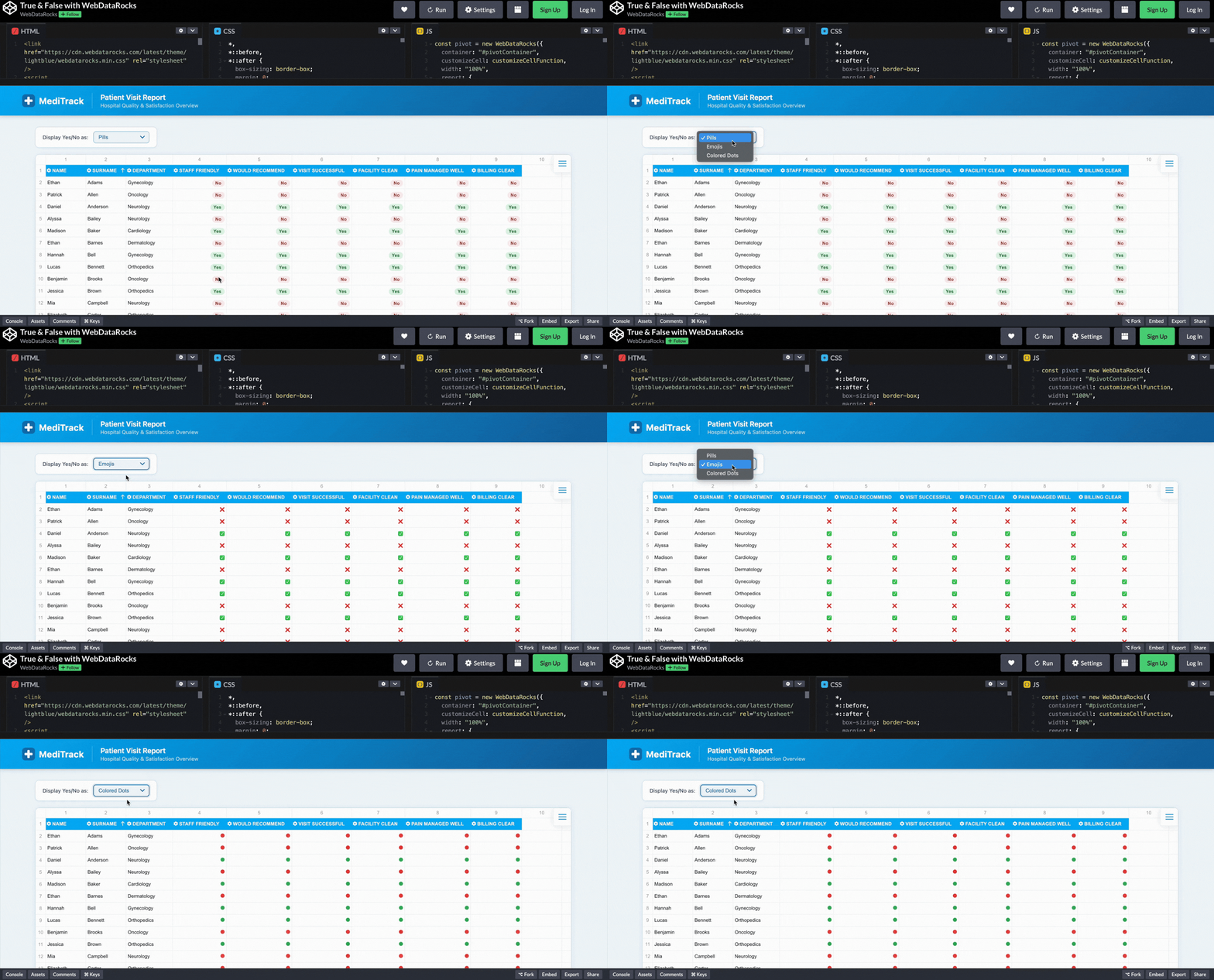
Why should we even choose the one? We can apply a few of them! So, the user can pick the option that’s most convenient: pills, emojis, or colored dots.
let currentMode = "pills";

function customizeCellFunction(cell, data) {
  if (
    data &&
    data.type === "value" &&
    fieldsToFormat.includes(data.hierarchy.uniqueName)
  ) {
    if (currentMode === "pills") {
      cell.text = data.value == 1
        ? `<span class="pill yes">Yes</span>`
        : `<span class="pill no">No</span>`;
    }

    if (currentMode === "emojis") {
      cell.text = data.value == 1 ? "✅" : "❌";
    }

    if (currentMode === "dots") {
      cell.text = data.value == 1
        ? `<span class="dot yes"></span>`
        : `<span class="dot no"></span>`;
    }
  }
}
Step 5: Switching How Insights Are Displayed in an Interactive Report
Here’s the time to do switching button for it. So, just add a simple dropdown so users can change the visualization style:
<select onchange="changeDisplayMode(this.value)">
  <option value="pills">Pills</option>
  <option value="emojis">Emojis</option>
  <option value="dots">Colored Dots</option>
</select>
And, for sure, connect it:
function changeDisplayMode(mode) {
  currentMode = mode;
  pivot.customizeCell(customizeCellFunction);
}
Now it feels like completely different dashboards depending on the view:
Step 6: Styling Web Pivot Table
And now, let’s bring real medical style to our dashboard so everyone understands what the topic is at first glance!
With WebDataRocks, you don’t need to create the whole design from scratch. It has 8 already built-in themes, and look, there’s a light-blue one! I guess it’s a perfect match for our dashboard. To implement it, just add this code snippet to your project:
<link href="https://cdn.webdatarocks.com/latest/theme/lightblue/webdatarocks.min.css" rel="stylesheet" />But don’t be scared, we don’t limit our users to just built-in themes, you can also create your own custom component theme!
Still not enough styling? We’ve got another idea. Let’s add a header to make our dashboard even more recognizable.
<header class="page-header">
<div class="header-inner">
<div class="header-logo">
<svg width="32" height="32" viewBox="0 0 32 32">
<rect width="32" height="32" rx="8" fill="#1A6BAA" />
<rect x="13" y="6" width="6" height="20" rx="2" fill="white" />
<rect x="6" y="13" width="20" height="6" rx="2" fill="white" />
</svg>
<span class="header-brand">MediTrack</span>
</div>
<div class="header-title">
<h1>Patient Visit Report</h1>
<p>Hospital Quality & Satisfaction Overview</p>
</div>
</div>
</header>And for sure, don’t forget to style it properly. You can see how it all comes together in the demo.
So here it is: our dashboard is ready to help hospitals track patient experience! Hope this demo helped you learn new features of WebDataRocks and gave you ideas for implementing them in your real projects.
By the way, #CodePenChallenge inspired the idea for this dashboard. And being honest, it’s not our first time experimenting with it. If you want to see more creative projects, we recommend reading our articles on dev.to about it:
- #CodePenChallenge Halloween Time: Building a Pivot Table with Horror Movies using WebDataRocks
- Building a Snowy Weather Dashboard with Free Pivot Grid Library
- #CodePenChallange: Colorful Way of Data Presentation Using Data Viz Library